How to convert a bank statement PDF to Excel
Choose a bank export, PDF table importer or statement converter, then test dates, signs and balances using a downloadable fictional statement and expected CSV.
To convert a bank statement PDF to Excel, extract its transaction rows into Date, Description and Amount columns, then compare the result with the source statement. Use the bank's native CSV when available; use a PDF converter when the records are only available as PDFs or scans.
The best method depends on the file and your software. A clean digital PDF, a scanned photocopy and a multi-page statement with wrapped descriptions present different extraction problems.
First, try the bank's own export
Look for a CSV or spreadsheet download for the account and period. If it contains the required transactions, use it rather than converting a PDF unnecessarily. Check its date range and whether pending transactions are included.
Keep the PDF statement too where available: the official period and printed balances help with reconciliation. For closed accounts or older periods, request the missing statements rather than assuming the online export covers all your records.
Choose an extraction method
| Method | Suitable starting point | Review needed |
|---|---|---|
| Bank CSV export | The required period is available | Dates, account, completeness and import layout |
| Copy and paste | A small table you can inspect manually | Split columns, wrapped rows and signs |
| Excel Power Query PDF connector | A supported installation and readable PDF tables | Per-page tables, headers and data types |
| Acrobat export | PDF-to-spreadsheet workflow, including supported OCR | Layout artifacts and transaction signs |
| A table-extraction library | A developer maintaining a repeatable layout-specific workflow | Layout changes, missing rows and any separate OCR stage |
| NoRekey | Bank-statement PDFs, including scans | Flagged results, dates, descriptions and balance checks |
This is a workflow comparison, not an accuracy benchmark. Results depend on the input, product version and review process.
Microsoft documents the Power Query PDF connector; check support for your Excel platform before following Data → Get Data → From File → From PDF. Do not assume a menu available on one platform exists on every Mac, Windows or web version. Adobe documents its PDF-to-Excel export.
Try a reproducible statement
Download the fictional July statement PDF and the expected transaction CSV. The statement is clearly marked synthetic and contains no real customer data.
| Date | Description | Signed amount | Running balance |
|---|---|---|---|
| 2026-07-03 | Client invoice 101 | 2,500.00 | 3,500.00 |
| 2026-07-10 | Office rent | -400.00 | 3,100.00 |
| 2026-07-31 | Bank service fee | -50.00 | 3,050.00 |
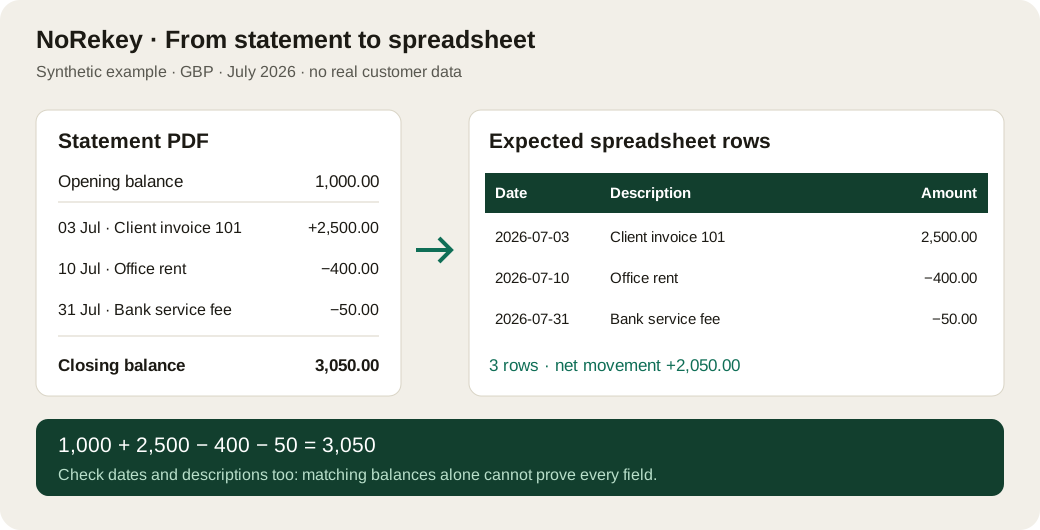
Opening balance is £1,000 and closing balance is £3,050. A correct extraction has three transaction rows and net movement of £2,050. Opening and closing balances should not become extra transactions.
Convert it with NoRekey
- Open the converter and upload the sample PDF.
- Inspect the extracted rows and balance-check result.
- Download Excel or CSV and compare dates, descriptions and signed amounts with the expected file.
- Check the account/currency and the first and last rows against the PDF before using the output.
For a password-protected statement, provide its PDF password when prompted. Convert protected files individually rather than expecting a batch to stop for passwords. Scanned PDFs go through OCR and count like any other page. For a one-off batch bigger than the free allowance, page packs avoid a subscription. The first-conversion guide explains the interface.
The example below illustrates the expected rows; it is a diagram of synthetic data, not a claim that a live AI conversion was benchmarked during publication.
Check arithmetic and fields separately
For this sample:
1,000.00 + 2,500.00 - 400.00 - 50.00 = 3,050.00
In Excel, if B1 holds the opening balance and C2:C4 the signed amounts:
=B1+SUM(C2:C4)
Compare the result to the printed closing balance. A mismatch calls for investigation: missing rows, incorrect signs, repeated headers or decimal parsing can all contribute.
Matching balances does not prove every row is correct. A missing £50 receipt and a missing £50 payment cancel out. A wrong date or description can leave the arithmetic unchanged. Inspect fields and, where printed, compare running balances row by row. If opening or closing balances are absent, there may be no complete balance check available.
Keep the export and working file separate
Save the original PDF, untouched export and a separate categorised working copy. Use an unambiguous date representation and do not mix currencies into one total. Import to the intended account using the software's documented format; Excel output and an accounting import file serve different purposes.
For many months, use the batch-conversion guide. For difficult scans, the OCR article explains the failure modes worth checking.
Convert the sample or your own statements, then verify the rows before they enter your books.
Statements in, clean books out.
NoRekey converts bank statement PDFs to CSV, Excel, OFX and QFX — every conversion balance-checked. Free to try.
Convert a statement free →How to combine multiple bank statements into one Excel file
Merge monthly statement PDFs into one spreadsheet, retain the source of every row, and check accounts, currencies and overlaps before importing.
How to categorise bank transactions in Excel
Use a reviewed payee lookup, an exceptions queue and a category summary to organise converted bank transactions without changing the source evidence.
Why scanned bank statements go wrong, and how to prove the numbers anyway
OCR reads a 1 as a 7, drops a decimal point, and loses the minus sign on a refund — and none of it looks wrong on screen. The specific ways scanned statements fail, why "99% accurate" is the wrong measure, and the arithmetic check that helps reveal them — plus the errors a matching total can still miss.