How to convert bank statements without a subscription
Need a few statements in Excel or CSV, just once? Compare free options, pay-once page packs and per-document pricing, and work out how many pages you need.
To convert bank statements without a subscription, start with your bank's own CSV export, use a free allowance for the first few pages, and buy a one-off page pack if you need more. A pack is paid for once and doesn't renew, so there is nothing to cancel afterwards.
That covers most one-off jobs: a tax year of statements for a Self Assessment return, a rental account for your accountant, three months for a mortgage application, or an old account you're finally reconciling. If you only have one statement, convert it free now, no account needed. For anything bigger, this guide shows how to size the job, what each route costs, and when a subscription does work out cheaper.
Work out how many pages you need
Converters charge by the page, so count pages rather than statements. Open two or three of your PDFs and check their page counts: a quiet personal account might run to two or three pages a month, while a busy business account with card spending can reach ten or more.
| The job | Statements | Typical pages |
|---|---|---|
| Mortgage application: three months, one account | 3 | 6–15 |
| Rental property account, one tax year | 12 | 25–50 |
| Personal current account, one tax year | 12 | 35–60 |
| Self Assessment with a personal and a business account | 24 | 70–150 |
| Two years of catch-up bookkeeping for a small business | 24 | 120–240 |
These are rough ranges; your bank's layout and how busy the account is set the real number. Scanned paper statements count page for page too, though some services charge them at a higher rate, so it's worth checking before you buy.
One tip before you start: download statements as PDFs straight from online banking rather than printing them to PDF or scanning a printout. A downloaded PDF keeps its text layer, which converts more reliably and more cheaply than an image of the page.
Option 1: your bank's own export (free)
Most online banking lets you download transactions as CSV, and often as OFX or QIF, without converting anything. If the export covers the period you need, use it: it's free and already structured.
The catch is history. Exports usually cover a limited recent window that varies by bank, and closed accounts often have no export at all. Older periods may only exist as PDF statements, and an export won't carry the statement's opening and closing balances, which are what you reconcile against. For older or closed accounts, request the statements from your bank first.
Option 2: free allowances and Excel
For a handful of pages, free routes are enough if you don't mind a little patience.
| Service | Free allowance |
|---|---|
| NoRekey | One statement of up to 10 pages with no account, then 10 pages a month free |
| BankStatementConverter | 1 page a day without an account, 5 pages a day registered |
| UK Statement Converter | 1 page a day without an account, 5 pages a day registered |
| BankConv | 1 page a day as a guest, 5 pages a day registered |
| TaxFly | Free with no account, for text-based PDFs |
A daily allowance handles a statement or two but stretches a 50-page job over a fortnight, and a monthly allowance suits a single short statement each month. TaxFly is fully free, but it leaves checking the output against the statement's balances to you.
If you'd rather your statements never leave your computer, there are open-source converters you run yourself. They need some technical setup and usually support only a handful of banks, but nothing is uploaded anywhere.
Excel can also import tables from PDFs through Power Query (Data → Get Data → From File → From PDF), depending on your version and platform. It's free if you already pay for Excel and copes with clean digital statements, but wrapped descriptions, split columns and multi-page tables need tidying, and nothing checks the result against the statement's balances. The PDF to Excel walkthrough covers that route step by step.
Option 3: pay as you go
When the job is bigger than a free allowance but too small to justify a monthly plan, buy pages once. Pay-as-you-go bank statement converters either sell pages in packs or charge per document.
| Service | What you buy | Price | Per page | Expires |
|---|---|---|---|---|
| NoRekey page pack | 100 pages | $5 / £4 / €5 | 5¢ | Never |
| NoRekey page pack | 500 pages | $19 / £15 / €18 | 3.8¢ | Never |
| ConvertMyBankStatement | 400 pages | $19 | 4.75¢ | Never |
| UK Statement Converter | 100 / 500 / 1,000 pages | £12 / £49 / £89 | 8.9p–12p | Never |
| BankConv | One document | From $2.99, priced by length | Varies | n/a |
Prices as published by each service in October 2026. They change, so check before you buy.
Price per page is only half of it. Before you pay, check:
- Formats. CSV and Excel suit spreadsheets. If the transactions are going into QuickBooks, Xero or Quicken, OFX or QFX imports more cleanly; which format to use explains the difference. Not every converter offers them.
- Scans. Some services charge scanned pages at a premium or don't accept them at all, and old paper statements are common in one-off jobs.
- Accuracy checks. A converter that compares its output with the statement's opening and closing balances tells you when a row is missing or a sign is wrong. One that doesn't leaves you to find out at reconciliation.
- Password-protected PDFs. Many banks send statements with a password. Check the converter can open them.
- What happens to your files. Bank statements are sensitive. Look for a clear deletion policy, not just the word "secure".
- A receipt. If the cost goes through your books or an expense claim, you'll want an invoice.
Which option fits your job
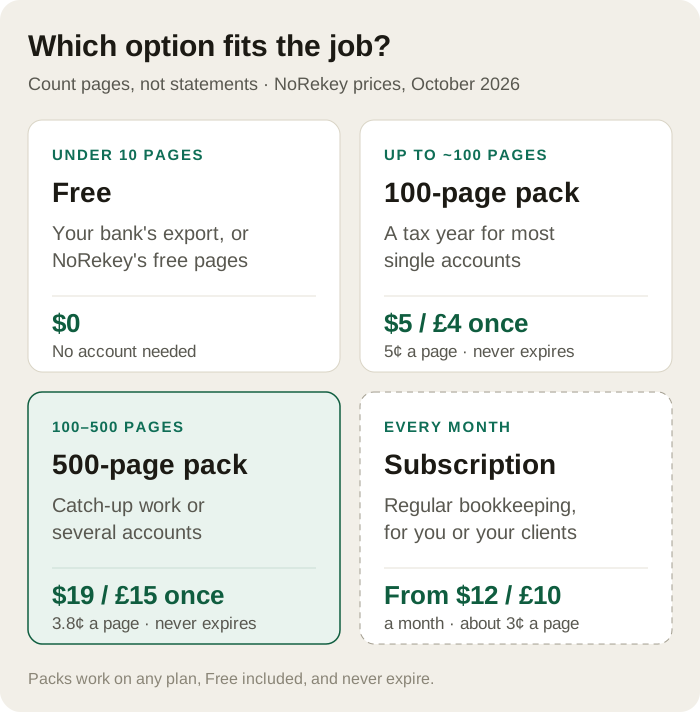
- Under 10 pages, once: use your bank's export or a free allowance. NoRekey converts one statement of up to 10 pages without an account.
- Up to about 100 pages, once: a 100-page pack ($5 / £4) covers a tax year for most single accounts.
- 100 to 500 pages: the 500-page pack ($19 / £15) brings the cost to 3.8¢ a page, and anything you don't use waits for next year.
- Every month: a subscription is cheaper per page. NoRekey's Solo plan is 400 pages a month for $12 (£10), about 3¢ a page, or 2.5¢ billed yearly.
The rule of thumb: if you'd use most of a plan's allowance most months, the subscription costs less. If the work comes in bursts, packs do. Both are on the pricing page.
How to convert statements with a NoRekey page pack
- Create a free account. It includes 10 pages every month; a pack tops that up.
- Buy a pack. On the Billing & plan page (from Settings, or the usage card on your dashboard), choose 100 or 500 pages under Extra pages and pay at Stripe's checkout. The pages are added straight away and the receipt appears under Invoices.
- Upload your statements. Drop several PDFs at once. A password-protected statement asks for its password when converted on its own (how protected PDFs work), and scans go through OCR at the same price as digital pages.
- Check the result. Every conversion is checked against the statement's own opening and closing balances, and anything that doesn't reconcile is flagged for review rather than exported quietly.
- Export. Download CSV, Excel, OFX, QFX or JSON, or combine several statements into one spreadsheet.
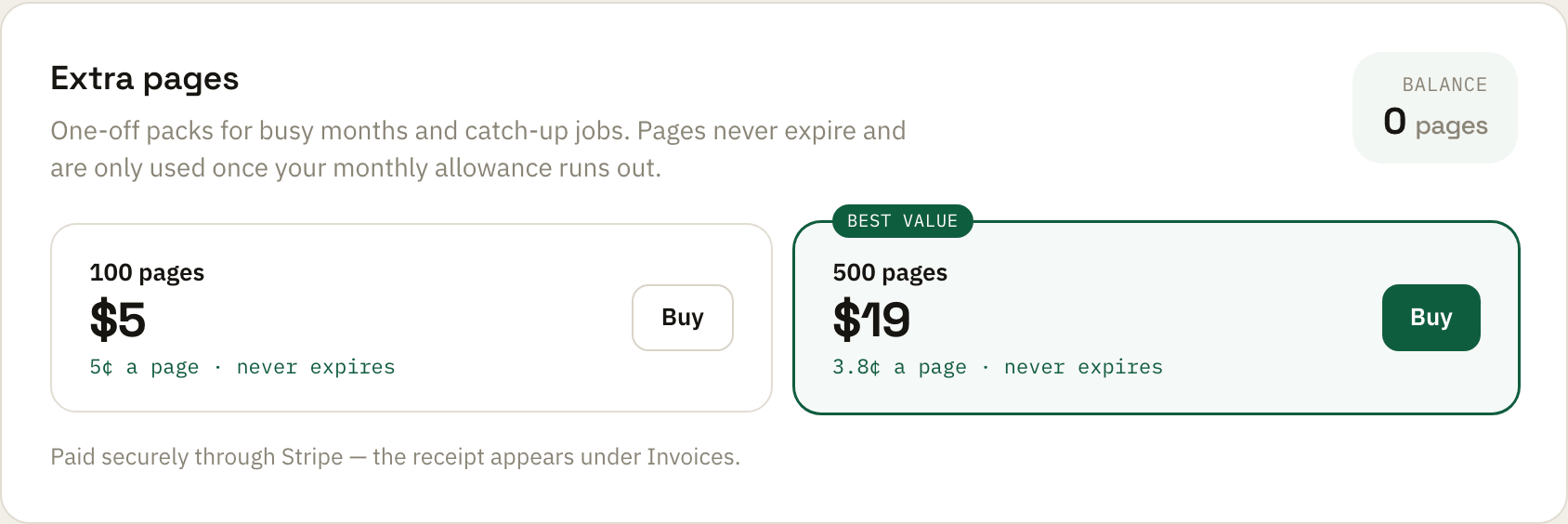
Your free monthly pages are used first. Pack pages only start once those run out, and they never expire.
When a subscription is worth it
If you convert statements for clients every month, a bank statement converter subscription beats packs on price per page and adds team seats. Solo is 400 pages a month for one person; Practice is 1,000 pages with three seats; Firm is 4,000 pages with twenty. Every plan includes all the export formats, the balance check and the API, and you can switch or cancel at any time. Compare them on the pricing page.
Frequently asked questions
Can I convert a bank statement to Excel for free?
Yes. Your bank's CSV export is free when it covers the period, and NoRekey converts one statement of up to 10 pages without an account, then 10 pages a month on its free plan. Excel's PDF import is also free if you already have Excel, though the output needs more tidying.
Do page packs expire?
No. NoRekey page packs never expire. They're only used after the month's free or plan allowance runs out, so unused pages wait for the next job.
Is a page pack cheaper than a subscription?
For a one-off job, yes: you pay once and nothing renews. For regular monthly work, a subscription is cheaper per page, at about 3¢ on NoRekey's plans against 3.8¢ to 5¢ for packs.
Do scanned statements cost more?
Not on NoRekey: a scanned page uses one page, the same as a digital one. Some other services charge scans at a higher rate, so check before buying.
What happens to my bank statements after conversion?
On NoRekey, the original PDF is deleted as soon as processing finishes, and the extracted data is deleted on a schedule you choose, from 30 minutes to 30 days. What happens to your files has the details.
Can I get a receipt for a page pack?
Yes. Every purchase creates an invoice, listed under Invoices on the Billing & plan page.
Statements in, clean books out.
NoRekey converts bank statement PDFs to CSV, Excel, OFX and QFX — every conversion balance-checked. Free to try.
Convert a statement free →How to get old bank statements — including from closed accounts
How far back online archives really go, what banks charge for older copies, and the exact request that works for closed accounts. Plus what to do with the pile once it arrives.
How to convert a bank statement PDF to Excel
Choose a bank export, PDF table importer or statement converter, then test dates, signs and balances using a downloadable fictional statement and expected CSV.
Self Assessment records checklist 2025/26: bank statements and supporting documents
Gather the records for your 2025/26 UK return: account-by-account statements, income evidence, expense receipts and a clear list of missing documents.